
User Management
When Users is clicked in the list on the left under Organization settings, the User Management screen is displayed.
At the top of the display, you'll find a pill-style toggle that shows Bells and your EHR. When toggled to Bells, the display is filtered to the users that are imported into Bells. When toggled to your EHR, you'll be able to search for users to import from your EHR into Bells.
 myAvatar Users
- Search results on User Management include a "Username" column as an additional point of user verification.
- myAvatar users can only search by the last name due to functionality available from myAvatar.
- Bells users are required to have a practitioner associated to them in myAvatar for them to show in Bells.
- The email address for users comes from the user definition, supplemental section, Organization email field where applicable. This may be hidden for your organization in myAvatar.
If the user hasn't been imported into Bells, you'll see an import button on the right side of the record. Clicking Import will import the user into Bells.
If the user has been imported into Bells, you'll see an indication that the user has already been imported and a refresh icon that will re-retrieve the data for the user from the EHR.
When a user is enabled, Bells will resync automatically to make sure Bells has the latest data for the user.
 For myAvatar, there is additional handling for users that have been deactivated. The “Bells Enabled” tag on the user management display will appear gray and with a strikethrough in the following scenarios:
- The user was bells enabled but the access period is not currently active.
- The user does not have a myAvatar login (NIAM or username).
Example:

For more information - check out the myAvatar FAQ article.
NIAM Troubleshooting
If you are using NIAM and get an error when logging into Bells that states that the user is not enabled, check your NIAM configuration.
- Bells Administrators: each NIAM-enabled user should show a checkmark to indicate NIAM is configured for the user.

- NIAM Administration: If you don't see the NIAM enabled checkmark in Bells, make sure the Login Name field is filled in in Staff Profiles within the Security form:

Bulk Actions
When the user display is toggled to “Bells” - the Bulk Actions button on the far right allows Admins to export the users display.
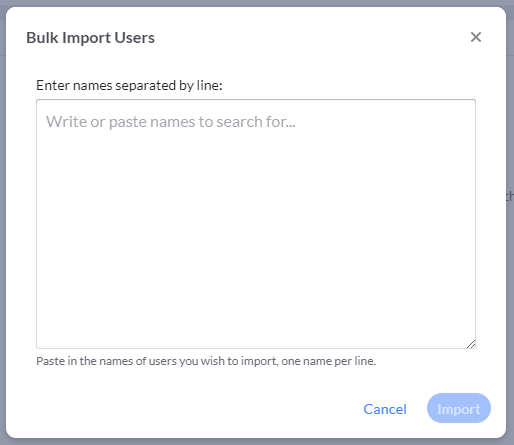
When the display is toggled to your EHR, the Bulk Actions button allows Admins to Bulk Import Users. When clicked, admins can type or copy/paste Users from the EHR to import into Bells all at once.
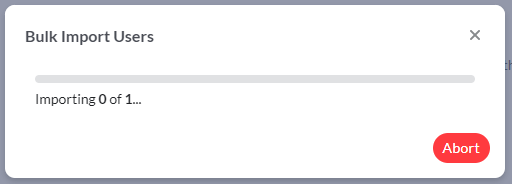
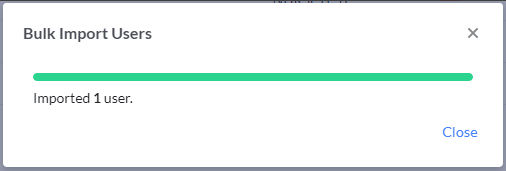
Once Import is clicked, a progress bar will show.
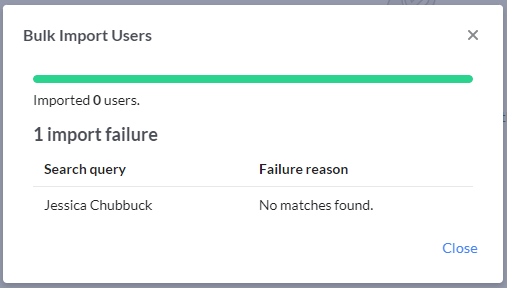
If there are any failures in the import, the names of the users that could not import will display, along with a reason why they couldn't import.
If all users import as expected:
The User Management display shows all users for your organization including their Name, Email, NIAM Enabled (if applicable), Hire Date, Last Signed In Date, and Permission tags. Permission tags show whether the user is Enabled for Bells, whether the user is an admin, whether the user is a supervisor, and any patient access overrides for the user.
The Last Signed In Date includes sign in activity for the user for the web and mobile applications.
Hovering on a user's row will show an ellipse menu on the far right of the display. 
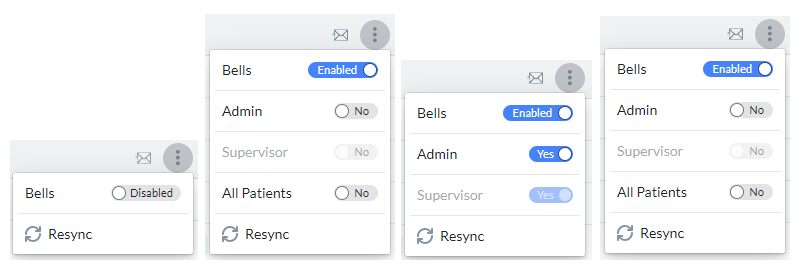
Clicking the More Options will show the menu of toggles to set permissions and access restrictions as well as Resync the user. Please refer to the Patient Population Management article for more information.
The permissions toggles will not show in the menu until the user is enabled for Bells.
 myAvatar and myEvolv admin users have the ability to Clear signature pin from User Management. This will remove the signature pin for the selected user. Once done, the user will need to refresh their browser and then they will be prompted to set up a new signature pin on their next note sign.
There are four (4) mutually exclusive roles in Bells. Meaning they cannot be shared with other mutually exclusive roles. These roles include Administrator, Supervisor, Quality Assurance and Director.
Tags and Toggles
 |
The Bells Enabled tag displays for users who are set to Bells Enabled in User Management. |
 |
The Admin tag displays for users who are set to Admin Yes in Bells User Management. The Administrator role is mutually exclusive. |
 |
The Supervisor tag displays for users who are set to Supervisor Yes in Bells User Management. The Supervisor role is mutually exclusive. |
 |
The QA role allows users to have access to Admin exclusive displays in Bells as well as Supervisor and Quality Assurance specific functionality. Access includes:
The Quality Assurance role is mutually exclusive. |
 |
Users with the Director Role have the same level of access as administrators -
The Director role is mutually exclusive. |
 |
The All Patients tag displays for users who are set to All Patient Yes in User Management when the Organization Level Patient Access is set to Care Team Level Access. This indicates that the individual user patient access setting is overriding what is set at the Organization Level. |
 |
The Care Team tag displays for users who are set to All Patient No in User Management when the Organization Level Patient Access is set to All Patient Access. This indicates that the individual user patient access setting is overriding what is set at the Organization Level. |
 |
User cannot use Bells |
 |
User can use Bells |
 |
User is not a Bells Administrator |
 |
User is a Bells Administrator |
 |
User is not a Supervisor |
 |
User is a Supervisor |
 |
User is not configured for Quality Assurance access. |
 |
User is configured for Quality Assurance access. |
 |
User can only view "My Patients" |
 |
User can view All Patients |
 |
Welcome email icon - When the user clicks the icon, the email recipient will receive the initial Welcome Email. If the user does not have an email address, an email address can be added when the icon is clicked. CT|One: An email added within Bells will sync back to CT|One. CT|One: An email added within Bells will sync back to CT|One.
|
 |
When the user hovers on the Welcome email icon and a date and time show for last sent, when the user clicks the icon, the email recipient will receive an additional Welcome Email. |
 |
The Welcome email icon with a restricted icon indicates the application couldn't send an email. If the user is not enabled in Bells, the send email button will be disabled. |
The My Patients toggle setting may drive some visibility for the patient in Bells; however, other settings also determine which patients are visible to users.
Depending on the settings in Bells for patient search and access limits, you may struggle to find a patient at times. The settings that drive which patients you can see in Bells are:
- Organization Level Restricted Patient Access settings in Organization Settings
- Toggle settings on Bells User Management
-
Client Lookup Limits (from CT|One)
-
Whether you're a member of the patient's Care Team (from CT|One)
-
Whether you're the patient's Managing Therapist (from CT|One)
- Patient Level Access restrictions - set to Confidential or User Exclusions set for the individual patient
-
myEvolv patient access can be configured to respect Workgroups from myEvolv. This means if you do not have access to a patient in myEvolv, you will not be able to search and find them in Bells. This is configured by the Bells team, just reach out to your Solution Consultant or Support Specialist to have it enabled.
- When the Workgroup setting is enabled, the “Break the Glass” functionality will no longer occur within Bells.
Note: Users with access to the User Management display are not allowed to change their own permissions. This includes Bells Enabled, Administrator or Quality Assurance toggle settings.
Supervisor Role in Bells
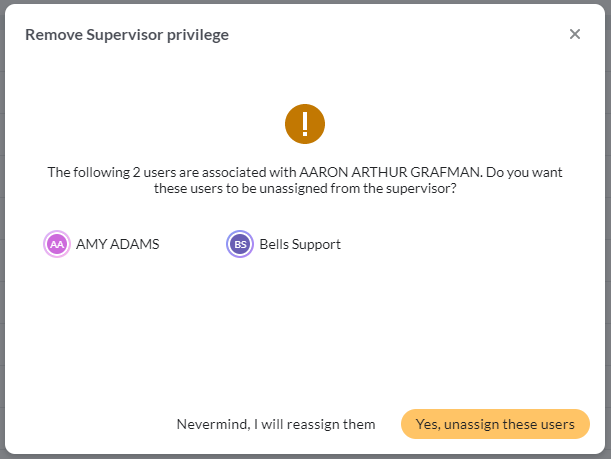
When the Supervisor Role is set in Bells, you will have access to additional functionality and displays. Supervisors can view additional data for their supervisees throughout the Bells application. If you have supervisees and then have your supervisor role removed, the user who removes the permission will be asked to reassign your supervisees.
Supervisors are configured in the EHR and sync to Bells to show in the User Profile. This includes who is a supervisor and who is set as a user/staff's supervisor. Additional supervisors can be added and removed in Bells via the User Profile. Supervisors configured in the EHR cannot be removed in Bells. Supervisors can remove their supervisees via the User Profile, but cannot add additional supervisees - that is done through the supervisee's profile.
Filters
The display also allows you to filter the list by Enabled/Disabled/Suspended, Admin/Supervisor/Quality Assurance Roles, All Patients setting and Bells Scribe users. The user management display will remember any filters set on the columns when accessing the display.

Counters

Counters in the top right corner show the Available users for the organization and of those Available users, the ones that are enabled for Bells.
Additional details for these counts:
- Available is the total number of users imported into Bells
- Bells Enabled is the total number of users enabled for Bells (has the Bells Enabled toggled on)
- Enabled users for the organization do not include Netsmart Administrative users such as Bells Support, Remarkable Support or Combined Services.